Showing posts with label BI Publisher. Show all posts

Thursday, August 25, 2011

OBIEE Publisher 11g - Performance Monitoring and User Auditing

BI Publisher performance monitoring enables you to monitor the performance of queries, reports and document generation and to analyze the provided details. User auditing provides information about what users logged in, when, how many times, what reports they accessed, and other actions they took within the application.


Enabling Monitoring and Viewing the Audit Log


To enable monitoring:
1. Update properties in the BI Publisher server configuration file.
2. Copy the component_events.xml file to your Middleware Home.
3. Configure the Audit Policy Settings with Fusion Middleware Control (Enterprise Manager)
4. Restart WebLogic Server.

To View Audit Log:
5. Configure Audit Repository
6. Create Data Source in WebLogic Server
7. Register the Audit-Storing Database to your Domain
8. Create Auditing Reports

1. Update Properties in the BI Publisher Server Configuration File

Three properties from the configuration file ‘xmlp-server-config.xml’ needs to be updated, the default location of the file is “config/bipublisher/repository/Admin/Configuration/xmlp-server-config.xml”.
Set: MONITORING_ENABLED = “true” and AUDIT_ENABLED = “true”, add a new property AUDIT_JPS_INTEGRATION = “true”. Below is a sample xmlp-server-config.xml file.
Before update
After Update
<'xmlpConfig xmlns="http://xmlns.oracle.com/oxp/xmlp">
   <'property name="SAW_SERVER" value=""/>
   <'property name="SAW_SESSION_TIMEOUT" value="90"/>
   <'property name="DEBUG_LEVEL" value="exception"/>
   <'property name="SAW_PORT" value=""/>
   <'property name="SAW_PASSWORD" value=""/>
   <'property name="SAW_PROTOCOL" value="http"/>
   <'property name="SAW_VERSION" value="v4"/>
   <'property name="SAW_USERNAME" value=""/>
   <'property name="MONITORING_ENABLED" value="false"/>
   <'property name="AUDIT_ENABLED" value="false"/>  
<'/xmlpConfig>
<'xmlpConfig xmlns="http://xmlns.oracle.com/oxp/xmlp">
   <'property name="SAW_SERVER" value=""/>
   <'property name="SAW_SESSION_TIMEOUT" value="90"/>
   <'property name="DEBUG_LEVEL" value="exception"/>
   <'property name="SAW_PORT" value=""/>
   <'property name="SAW_PASSWORD" value=""/>
   <'property name="SAW_PROTOCOL" value="http"/>
   <'property name="SAW_VERSION" value="v4"/>
   <'property name="SAW_USERNAME" value=""/>
   <'property name="MONITORING_ENABLED" value="true"/>
   <'property name="AUDIT_ENABLED" value="true"/>
   <'property name=”AUDIT_JPS_INTEGRATION” value=”true"/>
<'/xmlpConfig>
note: remove ' from tags above
2. Copy the component_events.xml file to your Middleware Home
a. Create a new directory “xmlpserver” at MIDDLEWARE_HOME/oracle_common/modules/oracle.iau_11.1.1/components
b. Copy the existing file “component_events.xml” from MIDDLEWARE_HOME/user_projects/domains/bifoundation_domain/config/bipublisher/repository/Admin/Audit to MIDDLEWARE_HOME/oracle_common/modules/oracle.iau_11.1.1/components/xmlpserver location.
3. Configure the Audit Policy Settings with Fusion Middleware Control
a. Login in to Oracle Fusion Middleware Control.
b. User WebLogic Domain, right-click bifoundation_domain and chose Security and click Audit Policy
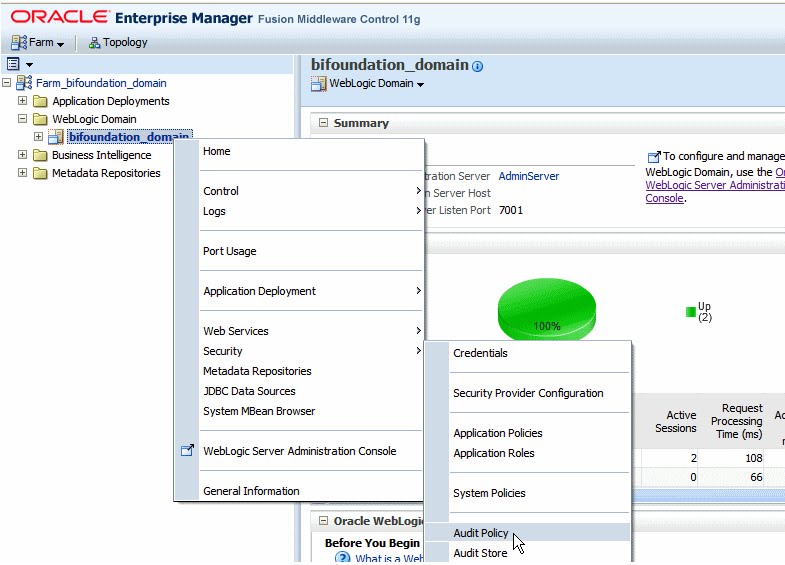
c. To set the Audit Level for BI Publisher, choose Medium from the Audit Level drop down menu or choose Custom to enable individual components. For this exercise we choose Medium.
4. Restart WebLogic Server
Restart the WebLogic Server using Fusion Middleware Control.
After restart the Audit information will be available in /AdminServer/logs/auditlogs/xmlpserver/audit.log. Create few reports and notice the audit logs in the file. Now we can create and configure audit repository to store the logs in database table instead in log files. Reports can be built over these tables to monitor.
5. Configure Audit Repository.
a. Create the audit schema using RCU (Repository Creation Utility – a separate package required for along with the OBIEE 11.x package)
                                  i. Run rcu.bat from RCU_HOME/bin
                                 ii. Follow the installation wizard and select Audit Services as show below.
                              iii. Continue the wizard and click Finish.
                             iv. As show below three schemas will be created for audit by the installation.
1. OBI_IAU
2. OBI_IAU_APPEND
3. OBI_IAU_VIEWER
6. Create a Data Source in WebLogic Server
To access the database schemas that we have created above we need to create a JDBC connection on the WebLogic Server. So that Audit Framework can access the schemas. Following are the steps to create a JDBC connection using Oracle WebLogic Server
a. Login to WebLogic Server Administration Console
b. Under Services, click Data Sources.
c. Click Lock and Edit button to enable editing.
d. On the Summary of JDBC Data Sources page, click New and click Generic Data Source.
e. Enter the following details for the new data source;
                           i. Name (example: BIP_AuditDB)
                          ii. JNDI Name (example: jdbc/AuditDB)
                         iii. Database Type (example: Oracle)
f. Click Next and select the database driver “Oracle's Driver (Thin XA) Versions: 9.0.1 or later” for Oracle database.
g. Enter the required connection properties like Database name, host name, port, database user name (for our exercise it’s OBI_IAU) and the password.
h. Click Next and accept the default setting and then click Test Configuration button as show below.
i. If the connection was successful, click Activate Changes to make the changes available.
7. Register the Audit-Storing Database to your Domain
a. Login to Fusion Middleware Control
b. Navigate to the WebLogic Domain, right click bifoundation_domain, then select Security, then Audit Store
c. Click Search Data Sources. From the Select Data Source dialog, select the data source you created and click OK
d. Click Apply and restart the WebLogic Server.
Note: After the restart, BI Publisher will store all auditing data into the database table called "IAU_BASE". To verify this procedure, try logging in to BI Publisher and opening a few reports. You should see the activity audited in the "IAU_BASE" table. If not, check the log file, which is located at: $BI_HOME/user_projects/domains/bifoundation_domain/servers/AdminServer/logs/AdminServer-diagnostic.log.
With the above data in IAU_BASE you can design the auditing reports using BI Publisher.
8. Create Auditing Reports
Following are the few steps in brief assuming the user knows about creating reports in BI Publisher in detail. 
  a. Create data source in BI Publisher
      Register the audit data source (JNDI/JDBC connection) that you created in the previous procedure as a JNDI data source in BI Publisher. Because you created a JDBC connection registered as JNDI, you do not need to create a new JDBC connection by typing the connection URL, username/password, and so on. You can just register it using the JNDI name (for example: jdbc/AuditDB).
           i. Log in to BI Publisher with administrator privileges and click the Administration link.
          ii. Under Data Sources, click JNDI Connection, and then click Add Data Source.
         iii. Enter the Data Source Name and JNDI Name. The JNDI Name is the name you provided       in the WebLogic Console as the auditing data source (for example: jdbc/AuditDB).
        iv. Click Test Connection to ensure that the data source connection works.
          v. Add the appropriate roles to the data source so that the report developers and consumers         can view the reports built on this data source. Click Apply to save.
b. Create (advanced) auditing reports for OBIEE version 11.1.1.5
With the version 11.1.1.5, we can make use of xmlpserver_audit.sql script to create a new table XMLPSERVER. Following are the steps;
                                                  i. Locate the table creation script xmlpserver_audit.sql at /user_projects/domains/bifoundation_domain/config/bipublisher/repository/Admin/Audit
                                                 ii. Edit the PERMISSIONS and SYNONYMS sections of the script as shown below.
From:
To:
                                               iii. Execute the updated script to create a new table and in OBI_IAU schema that you have created. You can login as SYS and alter the session to execute on OBI_IAU schema.
                                             iv. Restart the WebLogic Server.
                                              v. Create few sample reports in BI Publisher and notice the auditing information in the new table XMLPSERVER which will be used for building advanced BI Publisher auditing reports.
c. Create a data model
                                              i. Create a new data model with JNDI as the default data soruce.
                                            ii. Build or apply the following query using IAU_BASE table from OBI_IAU schema.
select
IAU_BASE.IAU_COMPONENTTYPE as IAU_COMPONENTTYPE,
IAU_BASE.IAU_EVENTTYPE as IAU_EVENTTYPE,
IAU_BASE.IAU_EVENTCATEGORY as IAU_EVENTCATEGORY,
IAU_BASE.IAU_TSTZORIGINATING as IAU_TSTZORIGINATING,
to_char(IAU_TSTZORIGINATING, 'YYYY-MM-DD') IAU_DATE,
to_char(IAU_TSTZORIGINATING, 'DAY') as IAU_DAY,
to_char(IAU_TSTZORIGINATING, 'HH24') as IAU_HH24,
to_char(IAU_TSTZORIGINATING, 'WW') as IAU_WEEK_OF_YEAR,
IAU_BASE.IAU_INITIATOR as IAU_INITIATOR,
IAU_BASE.IAU_RESOURCE as IAU_RESOURCE,
IAU_BASE.IAU_TARGET as IAU_TARGET,
IAU_BASE.IAU_MESSAGETEXT as IAU_MESSAGETEXT,
IAU_BASE.IAU_FAILURECODE as IAU_FAILURECODE,
IAU_BASE.IAU_REMOTEIP as IAU_REMOTEIP
from
OBI_IAU.IAU_BASE IAU_BASE
where
IAU_BASE.IAU_COMPONENTTYPE = 'xmlpserver'
To create a data model that contains only the BI Publisher data, then you can filter the data based on the value of the IAU_COMPONENTTYPE column that contains the product name. For BI Publisher, the value is "xmlpserver"
                                          iii. Test the sample with Get XML Output and save XML to your data model.
                                        iv. Save the data model.
d. Create the reports
Use know techniques for creating BI Publisher layouts, this exercise is out of scope.
                                           i. Using the layout options create a new BI Publisher layout.
                                          ii. Select the data model you have created in the previous procedure.
                                        iii. Click Add New Layout and click Base Templates. Following is the sample report from the layout editor (from Oracle)
                                    iv. Below are few samples auditing report with the data from the newly created schemas. Use both IAU_BASE and XMLPSERVER tables to build advanced detailed reports.

Thursday, August 19, 2010

OBIEE 11g is now available to the general public!

The much anticipated new release of OBIEE 11g was made available last weekend. Oracle has been discussing this product and the conversion of OBIEE and Hyperion on their product roadmap for a while and it has finally come to fruition. While there is certainly more to come in terms of this integration, Oracle has taken giant steps forward with this release of OBIEE.

Guident attended an exclusive Partner Briefing in Redwood Shores, the launch event in NYC and has been digesting the new features and functionality to understand its application for our customers. In short, we are impressed with this release and excited about the possibilities with OBIEE 11g.

Key features of this release include:

  • User Interface – the new 11g user interface is more intuitive and easier to use as it is now task oriented as opposed to product module oriented.

  • Improved Visualization - Graphing and Mapping – 11g takes advantage of a new graphing engine, shared by the entire Fusion suite, providing a broader range of visually appealing, interactive charts and graphics. 11g also includes integration of GIS maps into the analytics through the use of Oracle MapViewer and Navteq map data.

  • Integration with Hyperion – 11g makes it easier than ever to report from an Essbase cube and to push data into an Essbase cube. It also provides calculation capabilities and hierarchical analytical capabilities that were previously only available with an OLAP tool.

  • Action Framework – 11g provides a revolutionary ability to move from insight to action through the use of richer guided analytics capabilities. 11g enables the seamless integration of external processes (e.g. SOA and BPEL workflow) within a BI analytic object. (e.g. call a process to place a Credit Hold directly from a report of Days Sales Outstanding).

  • Scorecarding – 11g provides new capabilities to provide strategy maps, cause and effect diagrams, and track targets, actual and variances for KPIs.

  • Smooth Upgrade – 11g requires a relatively easy upgrade as opposed to a full migration process.
Guident is beginning right away to work with our customers in planning out 11g upgrades, demonstrating the capabilities, and determining the best means for taking advantage of the new features provided. Stay tuned for upcoming webinars on these new features from Guident in the near future. Call us for any information or demonstrations of OBIEE 11g.

Wednesday, August 18, 2010

Multi-Developer OBI EE Environments

In an environment with more than two or three OBI EE developers, it becomes increasingly difficult to coordinate and control code changes and updates to the OBI EE catalog, repository, and BI Publisher XMLP content. The larger the development team, the more likely the chance of two developers updating the same report and inadvertently overwriting each other’s work.

Often, some type of control is enforced by dividing the content into separate areas of responsibility. For example, developer 1 is responsible for maintaining the repository, developer 2 is responsible for all accounting reports, and so on. However, this approach makes resource utilization planning difficult for project managers since work-loads are never equally distributed across the areas of responsibility.

Since OBI EE has no built-in source code control capability, one has to look for third party software that can add this capability to an OBI EE development environment. There are several options including Microsoft Visual SourceSafe, CVS, and Tortoise Subversion (TortoiseSVN), which is an open source version control tool that can be downloaded for free at http://tortoisesvn.net/.

Regardless of the tool, the solution boils down to version control on the OBI EE content files as depicted in the diagram below.


Developers run local instances of the OBI EE environment on their own workstations. All files and subfolders in the OBI EE web catalog folder, the BI Publisher XMLP folder, and the repository files are placed under source code control in a central master repository. Each workstation has a local repository that is synchronized with the master repository via update, check-in, and check-out operations.

The development server, which is mainly used by the business analysts for testing, is another subscriber to the master repository. A simple update from the repository will deploy the most current version to the development server.

Once a developer has checked-out a file, the file is locked in the master repository and no other developer is allowed to change the file until it is checked in again. Thus, no longer can one developer inadvertently overwrite changes of another. In addition, this approach provides the capability to roll back the environment to a previous version.

Friday, October 2, 2009

Enabling BI Publisher with OBIEE for External Web Users

A challenging task in implementing an OBIEE environment can be the hosting and accessing the BI publisher reports outside of a DMZ or by the general public. Enabling OBIEE using the presentation server plug-in is fairly well documented in Oracle’s install documentation as well as various blogs on the web. Once you have created a website in IIS and followed the steps your installation should look something like this:


With a virtual directory called Analytics that is pointed to the \OracleBI\web\app folder. The application it runs is the saw.dll file. The virtual directory execute permissions property should be set to "Scripts and Executables". The next step is to make sure the Siebel Analytics Web Service Extension (saw.dll) is added as an extension and marked as Allowed.


If you plan on exposing OBIEE and BI Publisher reports to external web users outside the corporate firewall you need to plan for requesting that the correct ports are opened between the Presentation Server and the IIS server and the BI Publisher Server and the IIS server. The default configuration is to open port 9710 for OBIEE and port 9704 for BI Publisher. In the diagram Presentation Server and BIP are on the same internal box. On the IIS server you need to configure the \OracleBIData\web\config\ isapiconfig.xml file with the Internal Server and the port 9710.


Example:


Also you need to configure the \OracleBI\web\app\WEB-INF\web.xml with the internal presentation server and port 9710.


Following the above steps you should have OBIEE working just fine over the internet hosted by IIS. But if you have any BI Publisher reports they will not be available. So to over-come this limitation we need to follow the instructions outlined in section 9.2 of Oracle® Business Intelligence New Features Guide

The Oracle BI Publisher component of the OBIEE installation require Oracle Containers for Java (OC4J) and will not run natively on Microsoft's Internet Information Server (IIS).IIS can be configured as a listener for OC4J. This is accomplished via an IIS proxy plug-in that is provided with the BI EE installation files. When configured, the requests are routed from IIS to OC4J so that it appears to the user that everything is being executed by IIS. Below are the configuration steps:


  1. From your BI EE install files, locate oracle_proxy.dll. The navigation path is as follows:
    \Server\Oracle_Business_Intelligence\oc4jproxy\oracle_proxy.dll

  2. Create a folder on an accessible drive, for example: c:\proxy. Copy oracle_proxy.dll to this folder.

  3. In the same folder, create a configuration file called "proxy.conf " . Following is a sample configuration file:

      1. # Server names that the proxy plug-in will recognize.
        oproxy.serverlist=Internal

      2. # Hostname to use when communicating with
        a specific server.
        oproxy.Internal.hostname=internalserver.company.com

      3. # Port to use when communicating with a specific server.
        oproxy.Internal.port=9704

      4. # Description of URL(s) that will be
        redirected to this server.
        oproxy.Internal.urlrule=/xmlpserver
        oproxy.Internal.urlrule=/xmlpserver/*

      5. When you complete this Step, there will be two files (oracle_proxy.dll and proxy.conf) in the folder that you created in Step 2.

  4. Define the OracleAS Proxy Plug-in Registry as follows:

      1. Edit your registry to create a new registry key named: HKEY_LOCAL_MACHINE\SOFTWARE\Oracle\IIS Proxy Adapter.


      2. Specify the exact location of your configuration file with the name server_defs, and a value pointing to the location of your configuration file, for example: c:\proxy\proxy.conf.

      3. (Optional) Specify a log_file and log_level: Add a string value with the name log_file, and the desired location of the log file, for example, c:\proxy\plugin.log. Add a string value with the name log_level, and a value for the desired log level. Valid values are "debug", "inform", "error", and "emerg".

  5. Create the "oproxy" virtual directory in IIS as follows:

      1. Using the IIS management console, add a new virtual directory to your IIS Web site with the same physical path as that of oracle_proxy.dll. Name the directory "oproxy" and give it execute access.


      2. Using the IIS management console, add oracle_proxy.dll as a filter in your IIS Web site. The name of the filter should be "oproxy" and its executable must point to the directory that contains oracle_proxy.dll, for example, c:\proxy\oracle_proxy.dll.

      3. Add Oproxy as a Web service extension for c:\proxy\oracle_proxy.dll and set status to allow.


      4. Restart IIS (stop and then start the IIS server), ensuring that the filter is marked with a green arrow pointing up.

  6. Check the following configuration files to remove the port 9704 because now IIS is routing all the calls to OC4J.
    \oracleBIData\web\Config\instanceconfig.xml\oracleBI\xmlp\Admin\configutation\xmlp-server-config.xml

  7. To access BI Servlets from the IIS / OracleAS Proxy Plug-in, you must specify the complete URL for example:
    http:///xmlpserver/login.jsp